How to Setup IPTV on Any Device:
Step-by-Step Guide for 2026
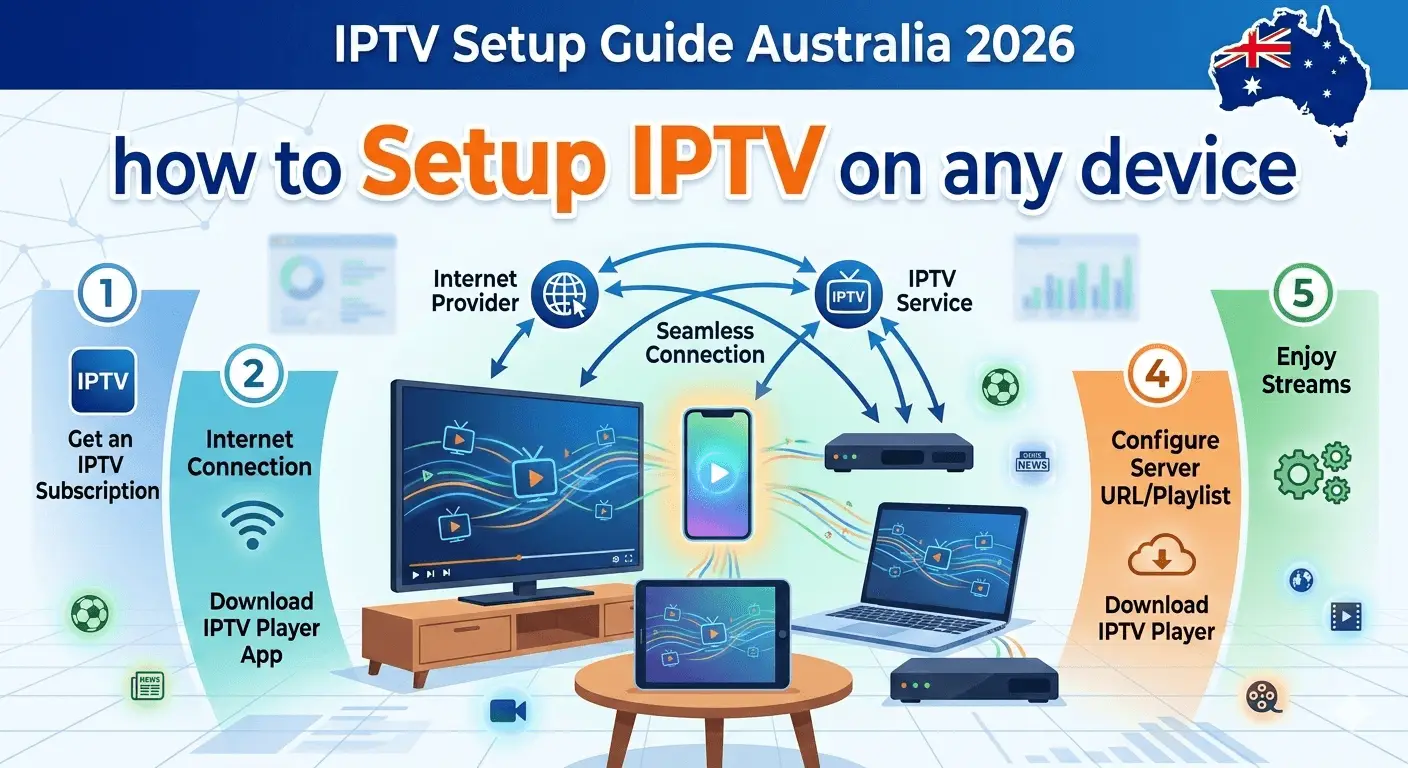
Right, let's get stuck into it. I've been setting up home entertainment systems for Australians for over a decade — everything from basic antennas to full whole-home 4K streaming rigs — and the question I get asked more than any other in 2026 is: "How do I actually get IPTV working on my telly?" It sounds more complicated than it is. I promise you, if you can install an app on your phone, you can do this. This guide covers every device, every step, and every common problem an Aussie user is likely to run into. Let's go.
Pre-Setup Checklist: What You Need Before Starting
Before touching any device or downloading any app, run through this checklist. Getting these things sorted upfront saves you a lot of head-scratching later. This is the bit most guides skip — and it's why most people hit problems halfway through.
Before going any further, make sure you have an active IPTV subscription. IPTV Australia's free trial gives you 48 hours — no credit card — to test everything before committing. Grab that first, then come back here and follow the setup steps for your device.
Choosing the Right App for Your Device
This is where a lot of people get confused. The IPTV app isn't the service itself — it's just the player that connects to your subscription. Not sure exactly what is IPTV and how it all fits together? That guide covers it properly before you dive in. Think of the app like a web browser: your subscription is the internet, and the app is how you access it. Different devices support different apps, and some are significantly better than others. Here's the definitive rundown for 2026.
| Device | Recommended App | Alternative App | Input Method | Difficulty |
|---|---|---|---|---|
| 🔥 Amazon Firestick | IPTV Smarters ProBest | TiviMate | M3U or Xtream Codes | ⭐ Easy |
| 📺 Android TV Box | TiviMateBest | IPTV Smarters Pro | M3U or Xtream Codes | ⭐ Easy |
| 📺 Samsung Smart TV | IPTV SmartersBest | Smart IPTV | M3U URL | ⭐⭐ Medium |
| 📺 LG Smart TV (webOS) | SS IPTVBest | IPTV Smarters | M3U URL | ⭐⭐ Medium |
| 🍎 iPhone / iPad (iOS) | GSE Smart IPTVBest | IPTV Smarters Pro | M3U or Xtream Codes | ⭐ Easy |
| 🤖 Android Phone/Tablet | IPTV Smarters ProBest | GSE Smart IPTV | M3U or Xtream Codes | ⭐ Easy |
| 🖥️ Windows PC | VLC Media PlayerBest | Kodi + PVR IPTV | M3U URL | ⭐ Easy |
| 🍏 macOS | VLC Media PlayerBest | IINA | M3U URL | ⭐ Easy |
| 🍎 Apple TV (tvOS) | GSE Smart IPTVBest | Infuse + M3U | M3U or Xtream Codes | ⭐ Easy |
My personal picks: TiviMate on Android TV is the slickest, most TV-native experience available — it looks and feels like a proper broadcast guide, which makes it the easiest transition for anyone coming from Foxtel. IPTV Smarters Pro is the most versatile and works well on almost every platform it supports. For casual use on phone or desktop, VLC and GSE Smart IPTV are no-nonsense and reliable.
Step-by-Step: Setting Up IPTV on Amazon Firestick & Android TV

The Amazon Firestick 4K Max is the most popular IPTV device in Australia — cheap, simple, and works brilliantly.
The Fire Stick is the most popular starting point for IPTV Australia Guide setups, and for good reason — it's cheap ($80 for the 4K Max), it plugs straight into your TV's HDMI port, and the whole process from unboxing to watching takes under 20 minutes. Android TV boxes follow the exact same steps. Let's do it.
-
1Enable Apps from Unknown Sources
Go to Settings → My Fire TV → Developer Options → Apps from Unknown Sources → Turn On. This is necessary because IPTV Smarters Pro isn't in the Amazon App Store — you'll be downloading it directly from the developer. This is safe and completely normal for IPTV apps.
💡 On Android TV boxes, find this under Settings → Security → Unknown Sources -
2Download the Downloader App
Search for "Downloader" in the Amazon App Store and install it. This is a free app that lets you download APK files (Android apps) directly to your Fire Stick using a URL. It's the standard method for sideloading apps on Fire TV devices.
-
3Download IPTV Smarters Pro
Open Downloader and type in the URL for IPTV Smarters Pro APK (your IPTV provider's Setup Guide will include the exact link). The file will download and then prompt you to install it. Tap Install, wait about 30 seconds, then tap Done.
💡 Alternatively, TiviMate is available directly in the Amazon App Store — just search for it. -
4Open the App & Choose Your Login Method
Launch IPTV Smarters Pro. You'll see three options: Login with Xtream Codes API, Load Your Playlist / M3U URL, or Load Playlist from Local Storage. Choose the method your provider uses — most Australian providers support both Xtream Codes and M3U. Xtream Codes is generally more stable for live TV.
-
5Enter Your Subscription Details
If using Xtream Codes: enter the server URL, your username, and password exactly as provided by your subscription email. If using M3U: paste the full M3U URL your provider sent you. Give the playlist a name (e.g., "IPTV Australia"), then tap Add User.
💡 Copy and paste your details from the email on your phone rather than typing on the remote — it's much faster. -
6Wait for the Channel List to Load
Depending on your NBN speed and the number of channels in your package, loading the full channel list can take 30 seconds to 3 minutes on first load. This is normal — it's pulling 10,000+ channels from the server. Subsequent loads are much faster as the data is cached locally.
-
7Browse Channels & Test a Stream
Navigate to Live TV, find a sports channel, and tap to start streaming. Give it about 5–10 seconds to buffer on first play. If it plays smoothly in HD or 4K — you're done. Easy as. If it buffers, jump to the NBN optimisation section below before troubleshooting further.
How to Install IPTV on Smart TVs (Samsung & LG)
Smart TVs are slightly trickier than the Fire Stick because the app stores on Samsung (Tizen) and LG (webOS) are more restricted than Android. But it's still very doable, and once it's set up the experience is excellent — no external device cluttering up your entertainment unit.
Samsung Smart TV (Tizen OS)
-
1Open the Samsung App Store
From your home screen, navigate to the Apps section. Search for "IPTV Smarters" or "Smart IPTV". On Samsung TVs from 2020 onwards, IPTV Smarters is usually available directly — just install it like any other app.
-
2If the App Isn't in the Store
Older Samsung TVs (2018–2019) may not have IPTV apps in their regional store. In this case, enabling Developer Mode on the TV allows you to sideload apps. Go to Smart Hub → Apps → Press 1–2–3–4–5 on remote → Developer Mode ON. Enter your PC's IP address, then deploy the app using Samsung's Tizen Studio tools — your provider's Setup Guide covers this in detail.
💡 Easier option: just buy a $80 Fire Stick 4K and plug it in. Same result, much less hassle. -
3Launch App & Enter M3U URL
Open IPTV Smarters on the TV, select Add New User → Load M3U URL, and enter your subscription's M3U link. Using a Bluetooth keyboard or your phone as a remote (Samsung SmartThings app) makes this much less painful than hunting through letters with the TV remote.
LG Smart TV (webOS)
-
1Install SS IPTV from the LG Content Store
Open the LG Content Store from your home screen and search for "SS IPTV" — this is the most reliable IPTV app available for LG webOS. Install it. It's free and works with M3U playlists directly.
-
2Configure Your Playlist
Open SS IPTV and navigate to Settings → Playlist → Add Playlist. Enter your M3U URL in the Remote Playlist URL field. Give it a name, save it, and return to the main screen. Your channel list will load automatically — on a good NBN connection this takes about a minute.
💡 For EPG (Electronic Programme Guide / TV guide data), ask your provider for their EPG URL and enter it in the EPG settings within SS IPTV.
Setting Up on Mobile & Tablets (iOS & Android)
This is genuinely the simplest setup of the lot. If you can install an app from the App Store or Google Play, you're 90% of the way there. Mobile IPTV is perfect for watching sport while travelling, catching up in bed, or using as a second screen during big footy nights.
iOS (iPhone & iPad)
-
1Download GSE Smart IPTV from the App Store
Open the Apple App Store and search for "GSE Smart IPTV". Install the free version — it supports M3U playlists, Xtream Codes, and has a genuinely good EPG interface for iOS. IPTV Smarters Pro is also available and works well if you prefer it.
-
2Add Your Playlist
Open GSE Smart IPTV and tap the menu (top left). Select Remote Playlists → Add (+). Give it a name, paste your M3U URL in the playlist URL field, then tap Add. The app will fetch your channel list — on a decent 4G or Wi-Fi connection this takes about 30 seconds.
-
3Browse & Stream
Tap your playlist name to open the channel list. Navigate by category — Live TV, Movies, Series — and tap any channel to start streaming. For sport, tap the EPG button to see the guide. Casting to your TV via AirPlay works seamlessly if you have an Apple TV or AirPlay-compatible TV.
💡 For best mobile streaming quality on 4G/5G, set your app to automatically adjust quality rather than forcing 4K — it prevents buffering on variable mobile connections.
Android (Phone & Tablet)
-
1Download IPTV Smarters Pro from Google Play
Search for "IPTV Smarters Pro" in the Google Play Store and install it. It's free and the most feature-rich IPTV player available for Android. If for any reason it's not available in your region, download it directly as an APK from the developer's official site.
-
2Log In with Xtream Codes or M3U
Open the app and choose your login method. Xtream Codes gives you a cleaner interface with better EPG integration. M3U is simpler if your provider only supplies a link. Enter your credentials exactly as provided — a single typo in the server URL or password will result in a "playlist load failed" error.
-
3Cast to Your TV
Once streaming on your phone, tap the Cast icon (if available) to send the stream to a Chromecast, Android TV, or Chromecast-enabled TV. This is a great option for households that haven't yet bought a dedicated streaming device — your Android phone essentially becomes the streaming device.
Desktop Setup: Watching IPTV on Windows and macOS
Desktop is arguably the easiest setup of all for a tech-comfortable user, because VLC Media Player — which most people already have installed — handles M3U streams natively with zero configuration. No worries.
Using VLC (Windows & Mac — Easiest Method)
-
1Open VLC and Navigate to Media → Open Network Stream
If you don't have VLC, download it free from videolan.org. Open it, click Media in the menu bar, then Open Network Stream (or press Ctrl+N on Windows, Cmd+N on Mac). This opens a dialog where you can enter any URL including M3U playlist links.
-
2Paste Your M3U URL and Play
Paste your M3U playlist URL into the URL field and click Play. VLC will load the playlist and begin playing the first channel. To browse channels, look at the Playlist window (View → Playlist). For a better browsing experience with a proper EPG, use a dedicated IPTV app instead of VLC.
💡 VLC works perfectly for testing your stream or watching occasionally, but it's not ideal as your main IPTV interface. For regular use on desktop, Kodi with the PVR IPTV Simple Client plugin gives you a full TV guide experience.
Using Kodi (Windows, Mac & Linux — Better for Regular Use)
-
1Install Kodi and Enable the PVR IPTV Simple Client
Download Kodi from kodi.tv. Once installed, go to Settings → Add-ons → My Add-ons → PVR Clients → PVR IPTV Simple Client and enable it. Then click Configure to open its settings.
-
2Enter Your M3U URL in the Plugin Settings
In the PVR IPTV Simple Client configuration, change the M3U URL source to Remote Path (Internet Address) and paste your M3U link. For EPG, enter your provider's XMLTV EPG URL in the EPG settings tab. Save, then go back to the Kodi home screen and navigate to TV → Channels. Your full channel list with guide data will appear.
💡 Kodi with a good M3U feed gives you the most complete desktop IPTV experience — full EPG, catch-up support, and a media centre interface that works brilliantly on a big monitor or connected to a projector.
Optimising Your NBN Connection for 4K Streaming

Optimising your NBN connection makes a genuine difference to stream stability — especially for live sport in 4K.
Your IPTV is set up and working — fantastic. Now let's make sure it stays that way. This section is about getting the most out of your NBN Streaming Setup, and it's especially important if you've noticed any buffering or occasional freezing. Most of these tweaks take less than five minutes and make a real difference.
Switch to a Faster DNS Server
Your DNS (Domain Name System) server translates website addresses into IP addresses. Your ISP's default DNS is often the slowest option available — and slow DNS means your device takes longer to connect to the IPTV server, which can contribute to buffering, especially at stream startup. Switching to a faster public DNS is free, takes two minutes, and often makes a noticeable improvement.
To change DNS on your router (which applies to all devices on your home network at once): log into your router admin panel — usually at 192.168.0.1 or 192.168.1.1 in your browser — find the DNS settings, and replace your ISP's DNS addresses with Cloudflare's 1.1.1.1 and 1.0.0.1. Save and restart the router. Done.
Other NBN Optimisation Tips
- Use Ethernet over Wi-Fi for your main TV device. A wired connection is always more stable and lower latency than wireless, especially during peak evening hours when your Wi-Fi is competing with every other device in the house.
- Position your router well. If you must use Wi-Fi, connect your streaming device to the 5GHz band rather than 2.4GHz — it's faster and less congested. Make sure the router is centrally located and not tucked behind furniture or inside a cabinet.
- Check if your ISP has QoS settings. Quality of Service (QoS) settings on your router can prioritise streaming traffic over other types (downloads, backups, etc.). Not all routers support it, but if yours does, enabling it for your streaming device's IP address can make a noticeable difference during heavy household usage.
- Run a speed test during peak hours. Check Speedtest.net at 8pm on a weeknight — that's when NBN congestion is at its worst. If you're dropping below 25 Mbps during peak hours, consider upgrading your NBN tier or switching ISP.
Common Aussie Problems & How to Fix Them
Right, this is the bit I get asked about most. Here are the problems that come up specifically for Australian users — things related to our NBN infrastructure, ISP policies, and local conditions. No worries, all of them are fixable.
Frequently Asked Questions
An M3U link is a playlist file URL — it's the address that points your IPTV app to your channel list. Think of it like a bookmark that contains the locations of all your channels. Your IPTV provider sends this to you when you subscribe, usually in a welcome email. It looks something like: http://yourprovider.com:8080/get.php?username=youruser&password=yourpass&type=m3u_plus. Copy the entire link and paste it exactly into your IPTV app when setting up. If you've lost it, contact your provider's support and they'll resend it.
Both are methods of connecting your IPTV app to your subscription, but they work differently. M3U is a simple playlist file — it contains a list of channel URLs that your app plays directly. Xtream Codes is a login system (username, password, and server URL) that gives the app dynamic access to your channels, EPG data, and VOD library through the provider's API. Xtream Codes is generally more stable for live TV, loads channel lists faster, and provides better EPG integration. If your provider supports both, use Xtream Codes for your main TV device and M3U as a backup.
EPG stands for Electronic Programme Guide — it's the TV guide that shows what's currently on and what's coming up on each channel. Without it, your IPTV app just shows a list of channel names with no programme information. Your IPTV provider will have an EPG URL (usually an XMLTV format link) — ask them for it if it wasn't in your welcome email. In your app (TiviMate, IPTV Smarters, etc.), go to EPG or Guide settings and paste the URL. The guide data loads in the background and usually takes 5–15 minutes to fully populate on first load. Some apps update EPG automatically; others need a manual refresh every few days.
Speed test results don't tell the whole story. A few more likely causes: your stream is coming from an overseas server (high latency causes buffering even with fast speeds — look for an IPTV provider with Australian servers); your ISP is throttling streaming traffic specifically (a VPN will bypass this); your Wi-Fi connection is dropping packets even if the overall speed looks fine (switch to Ethernet and test again); or the IPTV provider's servers are overloaded at peak times. The fix hierarchy: first try Ethernet, then try DNS change to 1.1.1.1, then try a VPN, then contact your provider about their server locations and stability.
Yes — most IPTV subscriptions support multiple simultaneous connections, typically 3–6 depending on your plan. You install the same app on each device, log in with the same credentials, and stream different channels simultaneously at no extra cost. Check your plan details for the connection limit — exceeding it usually results in a "maximum connections reached" error. If you have a large household with lots of screens, look for a plan with 5–6 simultaneous connections. Check the available options on the Pricing Plans page.
For most Australian users in 2026, TiviMate on Android TV or Fire Stick is the best overall experience — it has the most polished interface, excellent EPG integration, and feels like a proper broadcast TV guide rather than an app. For iOS, GSE Smart IPTV is the standout. For desktop, VLC for casual use and Kodi with PVR Simple Client for a full setup. For pure versatility across all platforms, IPTV Smarters Pro is the most consistent. The "best" app also depends on which one your provider recommends — check the best IPTV providers in Australia to see which platforms each service supports and recommends.
For a single 4K stream: a stable 25 Mbps minimum, but 50 Mbps recommended for comfort. For two simultaneous 4K streams: 50 Mbps minimum, 100 Mbps recommended. For a whole household running 4K on multiple screens: NBN 100 or better. The key word is "stable" — a connection that averages 100 Mbps but drops to 15 Mbps during peak hours is worse than a consistent 30 Mbps. Always test during peak hours (7–10pm on weeknights) at Speedtest.net to see your real-world performance, not just your theoretical plan speed.
No — you don't need a VPN to use a legitimate IPTV service in Australia. Most users stream perfectly fine without one. However, a VPN becomes useful in specific situations: if your ISP is throttling streaming traffic (you'll notice this as buffering on fast connections), if you're on a CGNAT connection that blocks certain streams, or if you're travelling internationally and want to maintain access to your home channels. If you do use one, connect to an Australian server to keep latency low. ExpressVPN, NordVPN, and Surfshark are the three most popular among Australian IPTV users.
Final Thoughts: Your Entertainment, Simplified

Once it's set up, IPTV just works — on any device, anywhere, with no contracts and no satellite dishes.
And that's it — you're done. What sounds complicated on paper is, in practice, about 15 minutes of straightforward app installation and copying and pasting a couple of URLs. The result is a genuinely better television experience than cable: more channels, better picture quality, more flexibility, and a monthly bill that's a fraction of what Foxtel was charging.
The setup steps in this guide cover every device an Australian household is likely to own. But if you hit a snag that's not covered here, the detailed Setup Guide on IPTV Australia's site goes even deeper — with screenshots for each platform and a live support team based locally who actually know Australian NBN conditions. The Pricing Plans page covers what's included at each tier if you haven't signed up yet.
If you're still on the fence about the subscription itself, the most sensible thing to do is grab the free 48-hour trial — no credit card, no commitment — and follow this guide to set it up on your main device. Watch a live sport event. Check that your must-have channels are there and working on your actual NBN connection. If it works — and it almost certainly will — you'll know exactly what you're getting before spending a cent. No worries.
Need a Subscription? Get Your Free Trial & Setup Today
48-hour free trial — no credit card required. AFL, NRL & Cricket in 4K from $19/mo.
Follow this guide and be streaming in under 20 minutes.
✓ No credit card ✓ Cancel anytime ✓ 48-hour trial ✓ Local AU support
Try IPTV Australia
Completely Free
No credit card. No lock-in. Cancel anytime.
Stream AFL, NRL & Cricket in 4K today.