How to Download IPTV Smarters on Firestick:
Step-by-Step Guide for 2026
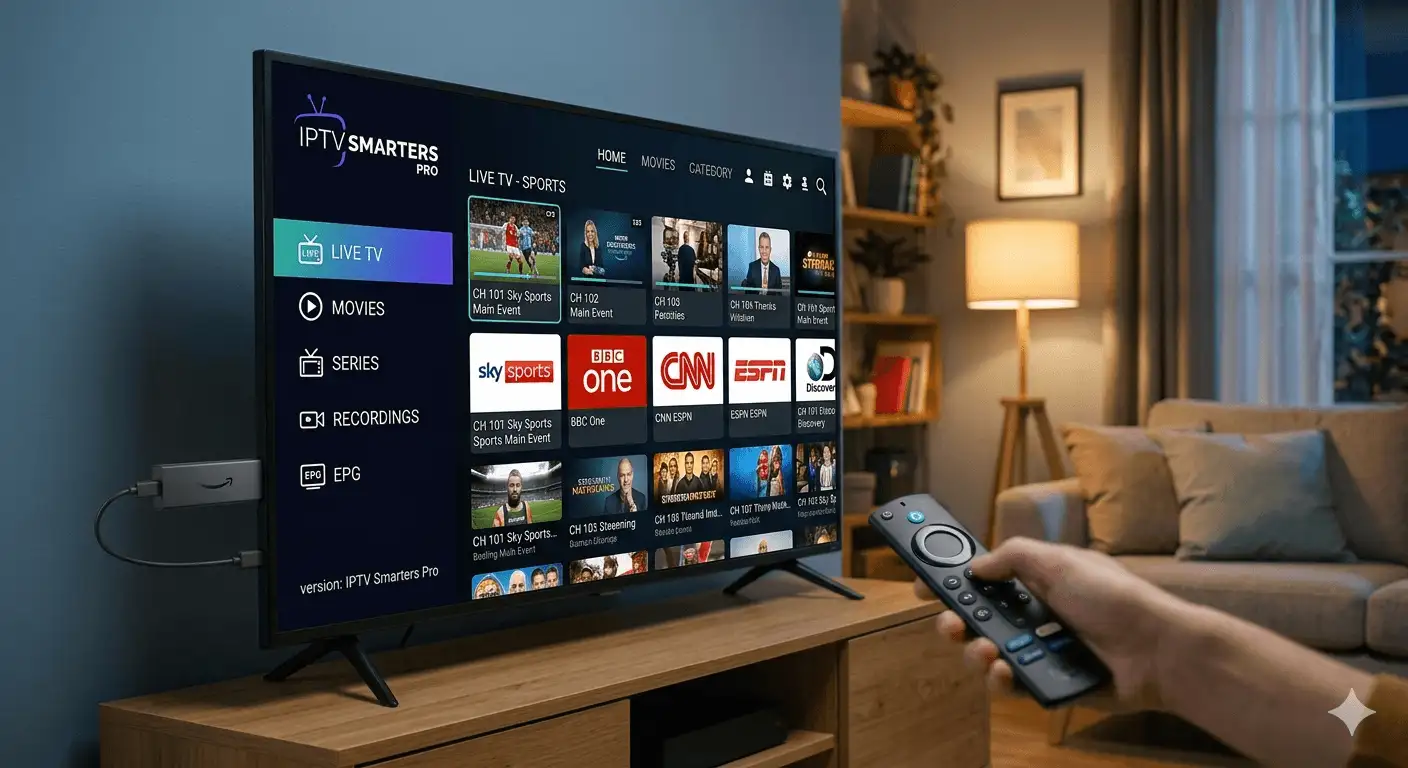
- 1Settings → My Fire TV → Developer Options → Install Unknown Apps: ON
- 2Search Amazon Store for Downloader → Install it
- 3Open Downloader → Enter IPTV Smarters Pro URL → Download
- 4Install the APK → Open IPTV Smarters → Enter credentials
- 5Choose Xtream Codes or M3U URL → Start streaming
- 6Get your login details from IPTV Australia's free trial
Right, let's get you streaming. Whether you've just pulled a brand-new Firestick 4K Max out of the box or you've had one sitting in the drawer for two years, this guide will walk you through downloading and installing IPTV Smarters on your Firestick from scratch — step by every single step. No assumptions, no skipping the "obvious" bits, because the bits people skip are almost always the bits that cause problems at 2am when you're trying to watch the footy.
I've set this up on everything from the original Firestick Lite to the current 4K Max, and I'll flag where the experience differs across models. By the end of this guide, you'll have IPTV Smarters Pro installed, configured, and streaming. Let's go.
Why IPTV Smarters is the #1 Choice for Aussie Streamers
There are dozens of IPTV player apps floating around the internet, and I've tested most of them. TiviMate is excellent (and we'll mention it as an alternative), Perfect Player has its fans, and GSE Smart IPTV has been around forever. But for the majority of Australian streamers — particularly those who want something that works out of the box without tinkering — IPTV Smarters Pro consistently comes out on top. Here's why.
The 2026 version of IPTV Smarters Pro has been significantly updated from the releases that caused compatibility headaches on Fire OS 7 and 8. The current build handles 4K HDR streams properly on the Firestick 4K and 4K Max, and the memory management has been overhauled so it doesn't crash after a few hours of continuous playback — a problem that plagued earlier versions and drove people nuts during long sporting events.
There are two versions of IPTV Smarters available: the free IPTV Smarters and the paid IPTV Smarters Pro. For a Firestick, always go with Pro — it removes ads, supports more simultaneous streams, and has the full EPG functionality. The download method below gets you the Pro version directly. If your IPTV provider supplies credentials, the Pro version is usually included or available as a one-time in-app unlock at minimal cost.
The Preparation: Enabling Developer Options on Your Firestick
This is the bit where most people get stuck — not because it's difficult, but because Amazon doesn't exactly advertise it. Your Firestick, by default, only allows apps installed from the Amazon App Store. Since IPTV Smarters Pro isn't on the Amazon App Store in Australia (it is in some regions but not consistently), we need to tell the Firestick it's allowed to install apps from other sources. This setting is called Apps from Unknown Sources and enabling it is completely safe when you know what you're installing.
Enabling "Unknown Sources" does not make your Firestick unsafe by itself. What matters is what APK files you choose to install. Only install apps from sources you trust. The download URL we use in Method 1 is the official IPTV Smarters Pro APK. Never install APKs from random links shared in forums or social media — these can contain malware. Stick to the known official source.
Step-by-Step: Enabling Unknown Sources (Fire OS 8 — 2024/2026 Interface)
From the Firestick home screen, navigate to the top row and select Settings (the gear icon on the far right). Don't panic if your home screen looks slightly different to screenshots you've seen online — Amazon updates the interface regularly and your firmware version may look a bit different. The Settings gear is always in the top-right area.
Inside Settings, scroll across and select My Fire TV. On older Firestick models or earlier firmware versions, this may appear as Device instead. Both take you to the same place. You're looking for the menu that contains "About" and developer-related options.
Inside My Fire TV, scroll down until you see Developer Options. Select it. If you can't see Developer Options, you may need to enable it first: go to About → scroll down to Fire TV Stick and click it rapidly seven times in a row. Yes, seven times — Amazon hid it behind this Easter egg just like Android phones do. You'll see a message saying "You are now a developer" (or similar). Go back to My Fire TV and Developer Options will now appear.
Inside Developer Options, you'll see Install Unknown Apps. Select it. You'll see a list of apps — this lets you enable unknown sources on a per-app basis, which is actually more secure than the old blanket toggle. Find Downloader in the list (you may need to install it first — we'll do that in the next section) and set it to ON. Once Downloader is enabled, it can install APKs it downloads. That's all we need.
If you're on an older Firestick (original or 2nd Gen) running Fire OS 5 or 6, the process is slightly different. Go to Settings → Device → Developer Options and you'll see a single toggle called Apps from Unknown Sources. Switch it ON. That's it — no per-app management on older firmware. The Firestick Lite and the 3rd Gen standard Firestick generally run Fire OS 7+, while the 4K and 4K Max run Fire OS 8.
Method 1: The "Downloader App" Route — The Easiest Way
This is the method I recommend to literally everyone. It's clean, it's fast, and it keeps everything on the Firestick without needing a laptop or phone involved. The Downloader app is essentially a browser/download manager for your Firestick that lets you grab any file from the internet by URL.
Installing Downloader from the Amazon App Store
From the Firestick home screen, go to the search icon (magnifying glass) at the top of the screen. Type Downloader. The app you want is simply called "Downloader" — it has an orange icon and is made by AFTVnews. It's free, it's legitimate, and it's available on the Amazon Appstore. Select it and press Download or Get.
Once Downloader is installed, go back to Settings → My Fire TV → Developer Options → Install Unknown Apps and find Downloader in the list. Toggle it to ON. This step is essential — without it, any APK that Downloader downloads will fail to install even after a successful download.
Launch Downloader from your apps. The first time it opens, it'll show you a browser-like interface with a URL bar at the top. It may also show a welcome screen or request permissions — accept them. You'll land on the Downloader home screen or a browser start page.
Entering the URL for IPTV Smarters Pro
Click on the URL bar at the top of the Downloader app. A keyboard will appear on screen. Type the download URL for IPTV Smarters Pro. The current official APK is available from the IPTV Smarters website — your IPTV provider (like IPTV Australia) will supply the exact current URL in their setup guide, as APK URLs change with version updates. Type the URL carefully and press Go.
Downloader will show a progress bar as it downloads the APK file. The IPTV Smarters Pro APK is around 25–35MB, so on a typical NBN connection it should take 10–30 seconds. Don't press any buttons during the download — just let it run. If it seems to hang, wait a full 60 seconds before assuming something's wrong. Slow DNS resolution can cause a slow start even on fast connections.
Once the download finishes, Downloader will automatically prompt you to install the file. A screen appears showing the app name and permissions it requires. Scroll down and press Install. The installation takes 5–15 seconds. You'll see an "App installed" confirmation. Press Open to launch it immediately, or Done to return to Downloader.
After installing, Downloader will ask if you want to delete the APK. Say Delete. The Firestick has limited storage (8GB on the standard model, 16GB on the 4K Max) and keeping APK installation files around wastes space. The app is already installed — you don't need the installer file anymore.
Method 2: Sideloading via PC or Phone — The Backup Plan

Sideloading via a PC or phone is the backup method when Downloader isn't cooperating — useful for older Firestick models with connectivity issues.
Sometimes the Downloader route hits a snag — the URL doesn't load, the Firestick can't reach the download server, or you're behind a router with restrictive DNS settings. No worries. This method uses a tool called ADB (Android Debug Bridge) to push the APK from your laptop or Android phone directly to the Firestick over your local Wi-Fi network. It sounds technical but it's genuinely not bad once you've done it once.
What You'll Need
- A Windows or Mac laptop (or an Android phone with a sideloading app)
- The IPTV Smarters Pro APK file downloaded to your laptop (from the official source)
- Both the Firestick and laptop on the same Wi-Fi network
- ADB tools installed on your laptop — available free from Google's Android developer site or via the Minimal ADB Fastboot installer on Windows
Go to Settings → My Fire TV → Developer Options and enable both ADB Debugging and Install Unknown Apps (for your ADB tool or the file manager you'll use). ADB Debugging is what allows an external device to connect to and push files to your Firestick.
Still in Settings: go to My Fire TV → About → Network. Note the IP address shown — it'll look something like 192.168.1.XXX. You'll need this to connect from your laptop.
Open a terminal or command prompt on your laptop. Type: adb connect [YOUR_FIRESTICK_IP]:5555 — for example, adb connect 192.168.1.105:5555. Press Enter. The first time you connect, the Firestick will show a prompt asking you to authorise the connection. Use your remote to select Allow. Your laptop will confirm: "connected to 192.168.1.105:5555".
In the same terminal, type: adb install -r /path/to/IPTVSmarters.apk — replacing the path with the actual location of the APK file on your laptop. For example on Windows: adb install -r C:\Users\YourName\Downloads\IPTVSmartersPro.apk. Press Enter. You'll see a progress indicator and then "Success" when it's done. IPTV Smarters Pro is now installed on your Firestick.
If you'd rather use an Android phone, download the Apps2Fire app (free on Google Play). Install IPTV Smarters Pro on your phone first, then use Apps2Fire to push it to your Firestick over Wi-Fi. Much simpler than command-line ADB for most people. For a full walkthrough see the HowToGeek sideloading guide. Note: this doesn't work on iPhones.
Initial Setup: How to Log In to IPTV Smarters
Right — app is installed, you've opened it for the first time, and now you're looking at a login screen. This is the other place where people get confused, because there are two fundamentally different ways to connect IPTV Smarters to your IPTV service. Understanding which one to use makes everything else click.
Option A: Xtream Codes API (Recommended)
This is the login method where you enter a username, password, and server URL. When you subscribe to a quality IPTV service like IPTV Australia, they send you these three pieces of information. On the IPTV Smarters login screen, select Login with Xtream Codes API and enter:
- Your Name: Any nickname you want — this is just for your reference inside the app
- Username: The username provided by your IPTV provider
- Password: The password provided by your IPTV provider
- URL: The server URL provided by your IPTV provider (usually starts with http:// and includes a port number like :8080)
Hit Add User and IPTV Smarters will connect to the server and download your full channel list. On a fast NBN connection, this takes 15–60 seconds. Once loaded, you'll see Live TV, Movies, Series, and Catchup all populated with content.
Xtream Codes API connections are "smart" — the app communicates with the server to get an always-current channel list, EPG data, and VOD library. When your provider adds new channels or updates content, your app updates automatically without you doing anything. M3U playlists are static files that need to be manually refreshed. For daily use, Xtream Codes is far less hassle.
Option B: M3U Playlist URL
Some providers give you a long M3U URL instead of (or in addition to) Xtream Codes credentials. On the login screen, select Load Your Playlist and Live TV Guide (M3U URL). Paste your M3U URL into the field. You can optionally add an EPG URL separately — your provider should supply this too. The downside of M3U: the playlist doesn't auto-update. If your provider rotates the M3U URL (which some do periodically for security), you'll need to update the URL manually.
Common Issues & Quick Fixes

Most IPTV Smarters issues on Firestick have straightforward fixes — here's what to do when things don't go to plan.
Don't panic if it looks different or something doesn't work first go. Here are the most common issues Aussie users run into and exactly how to fix them.
If you've tried everything and the app is still misbehaving, a factory reset of the Firestick and a fresh installation from scratch fixes almost every problem. Go to Settings → My Fire TV → Reset to Factory Defaults. You'll need to re-sign in to your Amazon account and re-download your apps, but it clears any corrupted data or conflicting settings accumulated over time. Takes about 15 minutes total.
Why a VPN is Recommended for Sideloaded Apps in Australia
Let me be direct: using a VPN with IPTV Smarters on a legitimate IPTV service is not legally required in Australia. However, it's genuinely good practice for several concrete reasons that have nothing to do with trying to hide anything illegal.
ISP Throttling — The Real Problem for Aussie Streamers
Some Australian ISPs — particularly those running congested networks — have been known to throttle streaming traffic during peak hours. This is traffic shaping: your ISP identifies streaming video traffic (by port number or traffic pattern) and deprioritises it during busy periods. The result is buffering even when your speed test shows perfectly adequate speeds. A VPN encrypts your traffic so your ISP can't identify it as streaming — which prevents throttling. If you notice your IPTV buffers during NRL or AFL prime time but your speed test looks fine, ISP throttling is the most likely culprit. A VPN resolves it immediately.
Privacy — Keeping Your Viewing Habits Your Business
Under Australia's data retention laws, ISPs log your browsing metadata — which servers you connect to and when — for up to two years. A VPN prevents this logging by encrypting your traffic before it leaves your device. Your ISP sees only an encrypted connection to a VPN server, not the streaming service behind it. For many Australians, this is simply a privacy preference that has nothing to do with the legality of what they're watching.
CGNAT — A Technical Issue Affecting Optus 5G Home Broadband Users
If you're using Optus 5G Home Broadband (or similar fixed wireless services), you may be behind Carrier-Grade NAT (CGNAT), which can cause connectivity issues with certain IPTV server configurations. A VPN gives you a clean, dedicated IP address that bypasses CGNAT restrictions. This is a pure technical fix, not a legal one.
ExpressVPN, NordVPN, and Surfshark all have native Fire TV apps on the Amazon App Store — no sideloading required. Install the VPN app from the Amazon store, sign in, connect to an Australian server, then open IPTV Smarters. For streaming, always use an Australian server (Sydney or Melbourne) to keep latency low. Using an overseas VPN server for Australian IPTV will increase latency and potentially reduce stream quality. The full Setup Guide includes specific VPN recommendations for Australian IPTV users.
Frequently Asked Questions
Yes — IPTV Smarters Pro itself is a legitimate, well-established app used by millions worldwide. The safety question is about where you download the APK from, not the app itself. Always download from the official IPTV Smarters website or use the URL provided by your IPTV provider (such as IPTV Australia). Never download APKs from random links in forums or social media posts. If you're using the Downloader method with a trusted URL, the process is completely safe. The app does not contain malware or spyware in its official release.
No — because IPTV Smarters Pro is sideloaded rather than installed from the Amazon App Store, it doesn't receive automatic updates through Amazon's update system. You'll need to manually install new versions by repeating the download-and-install process through Downloader when updates are released. Your IPTV provider will typically notify you when a significant update is available. In practice, the 2026 version is stable enough that you won't need to update frequently — but when major new versions drop (usually once or twice a year), it's worth installing them for performance and compatibility improvements.
This depends on your IPTV subscription plan rather than the IPTV Smarters app itself. Most IPTV providers offer plans with 1, 2, or more simultaneous connections. If your plan allows 2 connections, you can use the same credentials on two Firesticks at the same time. If you try to use them on more devices than your plan allows, the additional connections will fail or disconnect. Check your subscription details — the Pricing Plans page shows connection limits for each tier. The IPTV Smarters app installation itself can be on as many devices as you like; it's the server-side connection limit that matters.
Both are excellent IPTV players but they appeal to slightly different users. IPTV Smarters Pro is more beginner-friendly — the interface is intuitive, setup is straightforward, and it handles both Xtream Codes and M3U without any fuss. TiviMate is more customisable and has a slightly better EPG layout for power users, but it requires more initial setup and its best features are behind a paid "premium" subscription (around $5/year). For most Australians setting up IPTV for the first time, IPTV Smarters Pro is the right starting point. You can always switch to TiviMate later if you want more control over the interface.
Absolutely — this is everyone's pain point. Three options: First, download the Amazon Fire TV app on your iPhone or Android phone. It turns your phone into a remote with a proper keyboard for text input. Second, use a Bluetooth keyboard paired with the Firestick — any standard Bluetooth keyboard works. Third, in the Downloader app specifically, you can use Downloader's built-in "Bookmark" system — add your IPTV Smarters URL as a bookmark on a PC at amazon.com.au and it'll appear in Downloader without you needing to type it. The phone remote app is the easiest option by far.
The 2026 version of IPTV Smarters Pro requires Android 5.0 or higher, which all Firestick models from the 2nd Generation onwards support. The original 1st Gen Firestick (2014) runs Android 4.x and may not support the current version — if that's your situation, look for an older APK version or consider upgrading to a current model. The Firestick Lite, 3rd Gen standard, 4K, and 4K Max all run the current version without issues. Be aware that the Lite and standard models have 1GB RAM, which can cause occasional slowness during heavy use — the 4K Max with 3GB RAM is the smoothest experience.
For HD (1080p) streams: a stable 10–15 Mbps is sufficient. For 4K streams: 25–35 Mbps stable is recommended. The word "stable" matters more than the headline speed — a plan that runs at 100 Mbps during the day but drops to 20 Mbps during peak hours (8–10pm) will buffer 4K content during those hours. Run a speed test at Speedtest.net specifically at 8pm on a weeknight to see your real peak-hour performance. Wired Ethernet (via the USB-to-Ethernet adapter for Firestick) consistently outperforms Wi-Fi for streaming stability — if you have the option to run a cable, do it.
Sideloaded apps don't automatically appear on the Firestick's main home screen — Amazon's algorithm curates what appears there based on usage. To find IPTV Smarters: from the home screen, go to the top navigation bar and select Apps (or press the ☰ button on your remote → Apps). You'll see all installed apps there. To pin it to the home screen or the top navigation bar, highlight the IPTV Smarters app, press and hold the select button, and choose Move to Front or Add to Home. After a few sessions of use, Amazon's algorithm will also start suggesting it in the "Recent" row automatically.
Final Verdict: Enjoying Your New Setup
If you've followed this guide through to the end, you should be sitting in front of a Firestick with IPTV Smarters Pro installed, configured, and pulling in a full channel list. That's the hard work done. From here, it's just about making the most of what you've set up.
A few final recommendations to get the most out of the setup. First, spend 10 minutes organising your favourites list — IPTV Smarters lets you create a custom favourites channel list so you don't have to scroll through 30,000 channels to find Fox League. Second, set the EPG to update on startup in the app settings — this ensures your TV guide is always current when you open the app. Third, if you're planning to use this for live sport, do a test run during a regular game before a big event like Origin or the Grand Final. Test the stream quality, test the fallback options, and know where the settings are before the pressure is on.
Got your IPTV credentials? IPTV Australia's 48-hour free trial gives you everything you need — Xtream Codes credentials, server URL, full channel list — to get the whole setup running without spending a dollar first. Check the Pricing Plans once you've tested it and you're happy with the quality. And if you want platform-specific guides — Samsung, LG, iOS, Android — the full Setup Guide covers every device.
Right — you're done. Go watch something. You've earned it.
Ready to Stream? Get Your IPTV Free Trial & Credentials Now
48-hour free trial — no credit card. Xtream Codes credentials included.
Works instantly with IPTV Smarters Pro on your Firestick.
✓ No credit card ✓ Instant credentials ✓ Works on all Firestick models ✓ Cancel anytime